

Key Takeaways
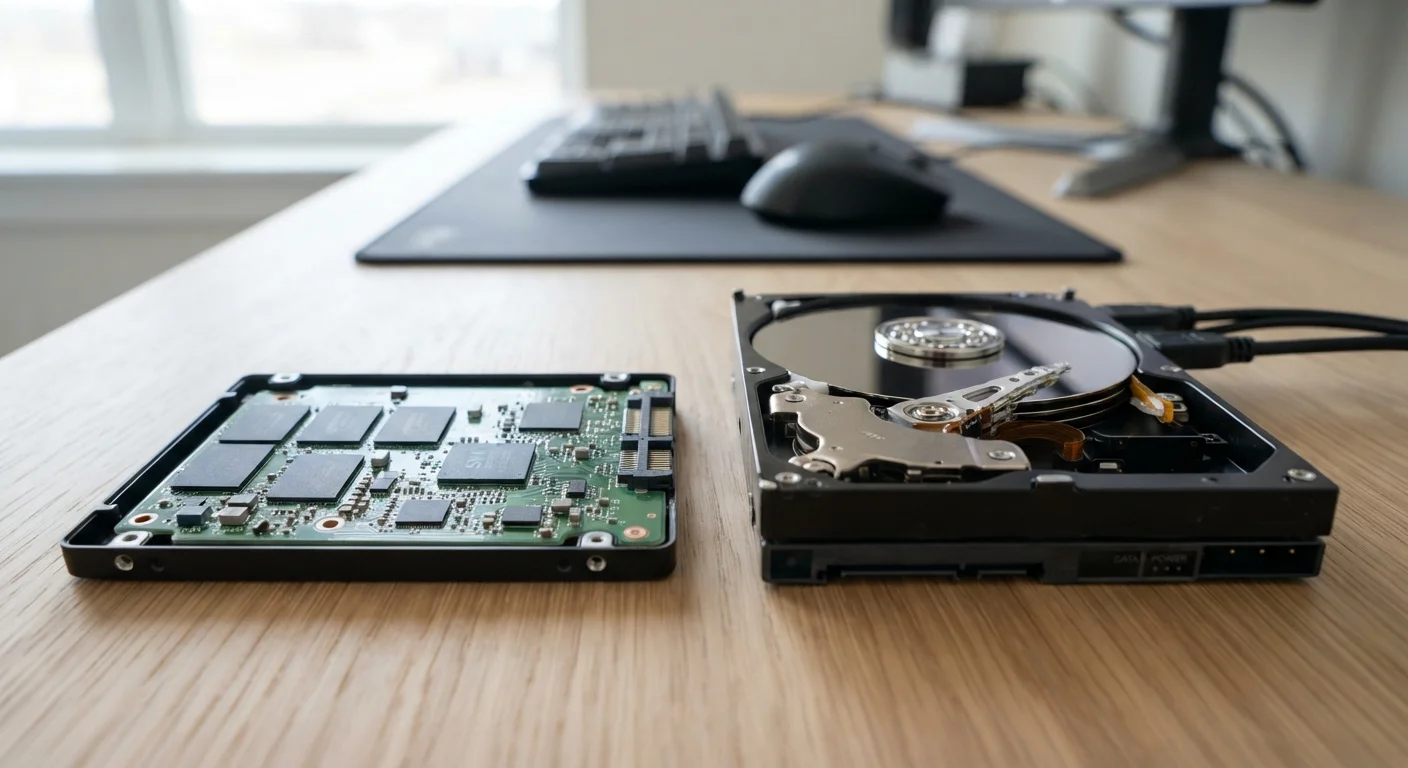
- SSDs use flash memory chips; HDDs use spinning magnetic platters — a fundamental difference in how data is accessed.
- SSDs are significantly faster at reading and writing data, which directly shortens boot times and application load speeds.
- HDDs typically offer more storage capacity per dollar, making them practical for large media libraries and backups.
- SSDs have no moving parts, making them more durable and quieter — an important advantage in portable devices.
- Many desktop computers use both: an SSD for the operating system and an HDD for bulk file storage.
Option A
SSD (Solid-State Drive)
The fast, silent, and shock-resistant modern standard.
Best for: Users who prioritize speed, portability, and reliability in laptops, desktops, or workstations.
Option B
HDD (Hard Disk Drive)
The high-capacity, affordable workhorse for bulk storage needs.
Best for: Users who need large amounts of storage at a lower cost, particularly for archiving or desktop use.
If you want a faster, more responsive everyday computer
SSD (Solid-State Drive)
SSDs dramatically reduce boot times and application loading, making general computing feel noticeably snappier.
If you need to store large volumes of files on a tight budget
HDD (Hard Disk Drive)
HDDs deliver far more gigabytes per dollar, making them practical for video archives, photo libraries, and backups.
If you use a laptop and need durability and battery efficiency
SSD (Solid-State Drive)
No spinning parts means SSDs withstand bumps better and draw less power — both meaningful in portable devices.
If you want a desktop with maximum total storage at a reasonable cost
HDD (Hard Disk Drive)
A secondary HDD paired with a primary SSD is a common and cost-effective desktop configuration for bulk storage.
How Each Drive Actually Works
The core difference between an SSD and an HDD comes down to how they physically store data.
An HDD (Hard Disk Drive) stores data on rapidly spinning magnetic platters. A mechanical read/write arm moves across the platter surface to locate and retrieve data — a process that introduces a small but measurable delay called latency. HDDs have been the standard storage medium in personal computers since the 1980s, and the technology, while refined, remains fundamentally mechanical.
An SSD (Solid-State Drive) has no moving parts at all. It stores data on interconnected flash memory chips — the same fundamental technology found in USB drives, just far faster and more sophisticated. Because there's nothing to spin or seek, an SSD can retrieve data almost instantly by comparison.
This difference in architecture cascades into every aspect of performance that affects you daily. For more context on how storage fits alongside other specs, see our guide to what laptop specs actually mean.
| Criterion | SSD | HDD |
|---|---|---|
| Technology | Flash memory chips | Spinning magnetic platters |
| Typical read speed | 500 MB/s – 7,000+ MB/s | 80 – 160 MB/s |
| Moving parts | None | Yes (platter + arm) |
| Shock resistance | High | Lower |
| Noise | Silent | Audible hum/clicking |
| Power consumption | Lower | Higher |
| Cost per gigabyte | Higher | Lower |
| Common max consumer capacity | 4–8 TB (consumer) | 10–20 TB (consumer) |
| Best use case | OS, apps, portability | Bulk storage, archives |
Speed, Durability, and Capacity: The Real Trade-offs
When comparing SSDs and HDDs, three factors matter most for day-to-day use: speed, physical resilience, and storage capacity relative to cost.
Speed
SSDs are substantially faster. A typical modern SSD reads data at speeds between 500 MB/s and several gigabytes per second, depending on its interface (SATA vs. NVMe). A conventional HDD peaks at roughly 80–160 MB/s. In practical terms, this means faster boot times, snappier application launches, and quicker file transfers — differences you notice within seconds of using a machine.
3–10×
Typical SSD speed advantage over HDD
Sequential read speed comparisons between SATA SSDs and conventional HDDs consistently show this performance gap in independent hardware benchmarks.
~$0.03
Approximate HDD cost per gigabyte (USD)
HDD pricing per gigabyte has remained significantly lower than SSDs, making high-capacity mechanical drives practical for bulk storage needs.
1.5 million hrs
Typical SSD mean time between failures (MTBF)
Many enterprise and consumer SSD manufacturers publish MTBF ratings in this range, though real-world longevity depends on usage patterns and workload.
Durability
Because HDDs contain spinning platters and a moving read/write arm, they are vulnerable to physical shock. Dropping a laptop mid-operation is more likely to cause data loss or drive failure with an HDD than with an SSD. SSDs have no mechanical components to knock out of alignment, making them considerably more resilient in portable devices. They are also silent in operation — HDDs produce an audible hum and occasional clicking under load.
Capacity and Cost
This is where HDDs retain a genuine advantage. Per gigabyte, HDDs are significantly cheaper than SSDs, and they are available in much larger capacities at consumer price points. Multi-terabyte HDDs remain common in desktop towers, network-attached storage (NAS) systems, and external backup drives. For users with very large media collections or archival needs, this cost difference is meaningful.
Which Storage Type Fits Your Situation
Neither storage type is universally superior — context determines the right choice.
If you primarily use a laptop, an SSD is the more practical option for most users. The combination of speed, battery efficiency (SSDs draw less power), and shock resistance makes SSD-equipped laptops noticeably better for portable, everyday use. Our article on matching your computer to how you actually work explores how portability needs shape hardware decisions more broadly.
For desktop users, a hybrid approach is common and practical: install the operating system and frequently used applications on an SSD for speed, then use a large-capacity HDD as a secondary drive for photos, videos, and backups. This setup captures the strengths of both technologies.
If you're building a home archive or backup system, HDDs offer the most storage for the investment. For an external drive used to back up files that aren't accessed constantly, raw speed matters less than capacity and cost.
NVMe vs. SATA: A Note on SSD Types
Not all SSDs are equally fast. SSDs connect via two main interfaces: SATA (the older standard, shared with HDDs) and NVMe (a newer, faster connection that uses the PCIe bus). An NVMe SSD can be three to seven times faster than a SATA SSD, and even further ahead of an HDD. When evaluating a computer's storage spec, checking the interface type — not just whether it has an SSD — gives you a clearer picture of actual performance potential.
Maintaining either drive type well matters too. Keeping storage from filling completely, managing unnecessary files, and staying current with software updates all contribute to long-term drive health. Our computer maintenance habits guide covers these practices in detail.