

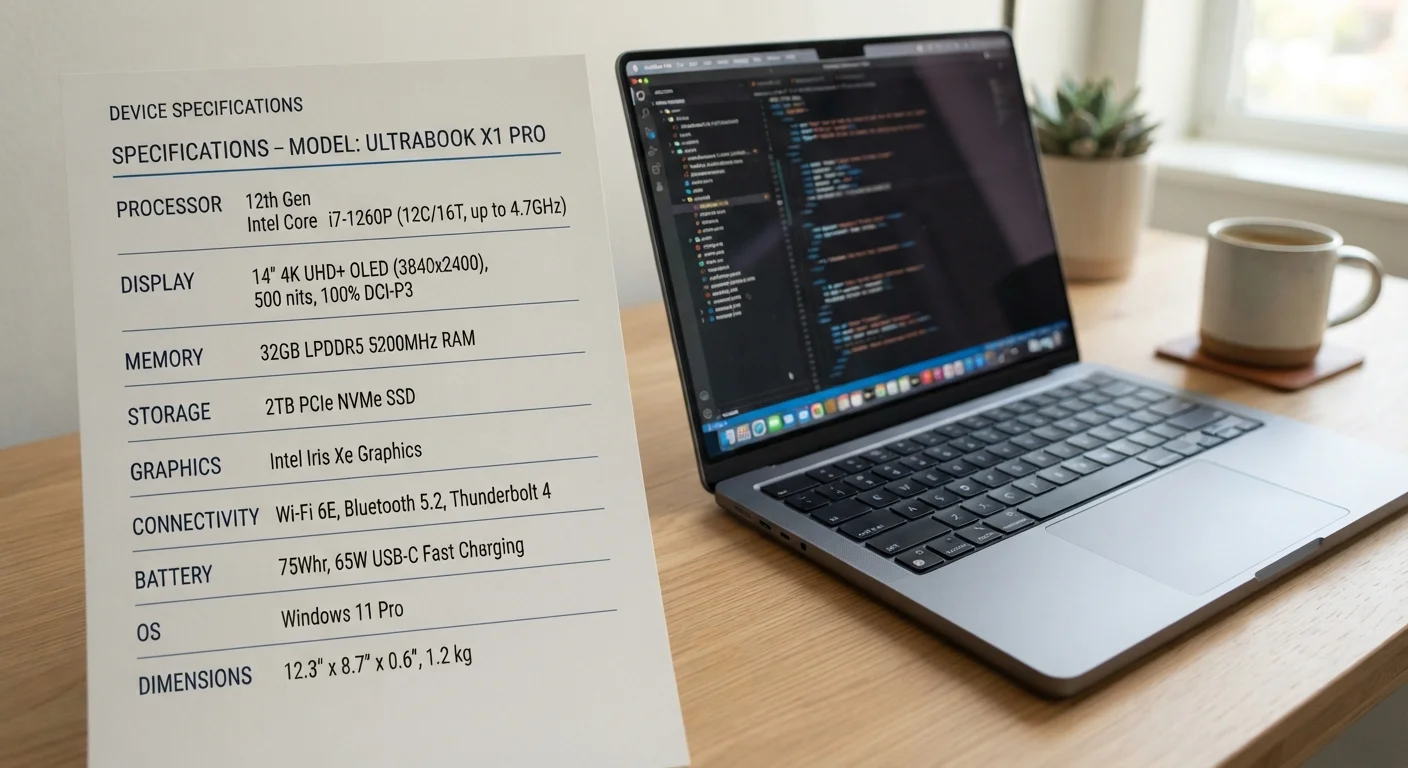
Key Takeaways
- RAM is temporary workspace — more of it lets you run more programs simultaneously without slowdowns.
- Storage holds your files permanently; the type of storage (SSD vs. HDD) affects speed far more than raw capacity.
- CPU cores handle parallel tasks; clock speed measures how fast each core processes instructions.
- A higher spec number doesn't always mean meaningfully better performance for everyday use.
- Matching specs to your actual workload is more useful than chasing the highest numbers on a sheet.
Laptop Specifications
Laptop specifications are the technical measurements that describe a computer's core hardware components — including how much memory it has, how fast its processor runs, and how data is stored. Each spec answers a specific question about what the laptop can do and how quickly it can do it. Together, they determine whether a machine handles your workload comfortably or struggles under pressure.
Specs are measured at the hardware level and reflect theoretical maximums; real-world performance also depends on software optimization, thermal design, and how components interact.
RAM: Your Laptop's Active Workspace
RAM — short for Random Access Memory — is the temporary workspace your laptop uses while running programs. Think of it as your desk surface: the larger it is, the more you can have spread out and actively working at once. When RAM runs low, your laptop moves data to slower storage to compensate, which is a primary cause of noticeable slowdowns.
The key insight about RAM is that it only holds data while the machine is powered on. Closing an app frees that RAM back up; shutting down clears it entirely. This is fundamentally different from storage, which retains data indefinitely.
RAM and Storage Are Not the Same Thing
A common source of confusion is treating RAM and storage as interchangeable measures of capacity. They perform completely different functions: RAM is active, temporary, and cleared on shutdown, while storage is persistent and holds everything on the machine. Confusing the two can lead to misreading a spec sheet and choosing the wrong configuration for your needs.
For users curious about how RAM behavior is commonly misunderstood, our article on common misconceptions about computer memory separates myth from fact in plain language.
Storage: Where Everything Lives Permanently
Storage is the component that holds your operating system, installed applications, photos, documents, and every file you've ever saved. Unlike RAM, storage persists when the laptop is off. The two main types you'll see in laptop specs are SSDs (Solid-State Drives) and HDDs (Hard Disk Drives), and the difference between them matters far more to daily experience than the raw gigabyte count.
SSDs store data on flash memory chips with no moving parts, making them significantly faster and more durable. HDDs use spinning magnetic platters, which are slower but traditionally offered more storage capacity for the money. Most modern laptops ship with SSDs for this reason. For a full breakdown of trade-offs, see SSD vs HDD: the real differences.
~3–5×
Speed advantage of SSD over HDD for file access
Sequential read speeds for consumer SSDs commonly range from 500 MB/s to over 3,500 MB/s, versus 80–160 MB/s for typical HDDs, according to manufacturer benchmarks and independent hardware testing.
16GB
RAM increasingly standard in productivity laptops
Industry observers note a broad shift toward 16GB as the baseline for mid-range and business laptops, reflecting the growing memory demands of modern operating systems and browser-based work.
4–16 cores
Typical consumer laptop CPU core range
Modern mainstream laptop processors from major chip manufacturers commonly ship with between 4 and 16 cores, with higher counts targeting content creation and development workloads.
Processing Power: CPU Cores and Clock Speed Explained
The CPU, or processor, is the brain of the laptop — it executes instructions from every application running on the machine. Two numbers dominate processor specs: core count and clock speed.
Clock speed, measured in gigahertz (GHz), describes how many processing cycles a CPU completes each second. Higher numbers suggest faster individual calculations. Core count refers to how many independent processing units exist within the chip — more cores allow more tasks to run truly simultaneously.
The practical implication: a processor with more cores handles multitasking and demanding software better, while clock speed influences how snappy single tasks feel. Architecture generation matters too — a newer chip built on a more efficient design can outperform an older chip with a higher clock speed on paper. Spec comparisons only tell part of the story.
Match Specs to Your Actual Workload
Before comparing numbers, write down the three or four tasks you do most on a laptop. Streaming and browsing demand very different specs than 3D modeling or software development. Knowing your workload makes spec comparisons far more meaningful — and helps you avoid overpaying for performance headroom you'll never use.
If you're weighing whether a laptop's specs match how you actually work, our guide on desktop vs laptop trade-offs provides a practical framework for aligning specs to real-world needs.
Reading Specs Without Getting Misled
Spec sheets are designed to communicate technical details, but they can create misleading impressions when taken out of context. A high clock speed paired with an outdated CPU architecture may underperform a newer chip with a modest number. Large RAM figures on an otherwise slow machine don't guarantee a smooth experience. And storage capacity alone says nothing about how fast your laptop boots or opens files.
The most useful approach is to match specs to your intended use. A student writing papers and attending video calls has very different needs than someone editing 4K video or running data modeling software. Understanding what each spec actually measures — rather than treating numbers as prestige indicators — is the foundation of a sound decision. For a closer look at how misleading spec figures can catch buyers off guard, see spec sheet traps for first-time buyers.