
Why Your Computer Slows Down Over Time — and What's Actually Happening Inside

Key Takeaways
- Software accumulation — startup programs, background services, and bloatware — is the most common cause of perceived slowdown.
- Storage drives, especially traditional hard disk drives, slow down as they fill up and their components age.
- Operating system updates add new features that require more processing power than older hardware was originally designed to handle.
- Thermal throttling causes a CPU to automatically reduce its speed when it overheats, often due to dust buildup.
- Many slowdowns are software-related and can be improved through maintenance habits without replacing hardware.
Computer Performance Degradation
Computer performance degradation refers to the gradual slowdown most computers experience over months or years of use. It isn't one single failure — it's the combined result of software accumulation, storage changes, hardware aging, and operating system growth. Understanding what's actually happening helps you distinguish normal wear from fixable problems.
Degradation often stems from increased resource contention — more background processes competing for finite CPU cycles, RAM, and storage I/O bandwidth than existed when the machine was new.
The Software Layer Keeps Growing
When a computer is new, it runs close to its designed capacity with minimal background activity. Over time, that changes substantially. Every application installed adds potential background processes — update checkers, cloud sync services, notification agents — that launch automatically and consume CPU cycles and RAM whether you're using them or not.
Startup programs are a particularly common culprit. As more software gets installed, more of it requests permission to launch at boot. A machine that once started in thirty seconds may eventually take several minutes simply because a dozen programs are all initializing simultaneously before you've opened a single window.
Operating system updates compound this. Each major OS update typically introduces new features, security layers, and background services. These additions are designed for current hardware standards, which means they place heavier demands on machines that were built to an older baseline. The hardware hasn't changed — the software running on it has gotten bigger.
Audit Your Startup Programs Regularly
On Windows, Task Manager's Startup tab shows every program that launches at boot and its impact rating. On macOS, System Settings > General > Login Items gives the same view. Disabling programs you don't need running constantly is one of the most effective and reversible ways to recover responsiveness — no hardware changes required.
What's Happening to Your Storage Drive
Storage drives — whether traditional spinning hard disk drives (HDDs) or solid-state drives (SSDs) — behave differently as they age and fill up, but both experience measurable performance changes over time.
With HDDs, filling up the drive forces the system to scatter file fragments across increasingly distant sections of the spinning disk — a process called fragmentation. Retrieving those fragmented files takes longer because the physical read head must travel farther. Even without fragmentation, a drive operating near its capacity has less room for temporary system files the OS uses to manage active tasks.
SSDs don't fragment the same way, but they have their own limitations. Flash memory cells degrade with each write cycle over time. As an SSD ages and its free space shrinks, the controller has less room to optimize writes efficiently, which can slow down performance. Most consumer SSDs are rated for far more write cycles than average users will ever reach, but the effect is real and measurable in aging drives.
Understanding how computer memory actually works is a useful companion to understanding storage — the two are often confused, but they affect performance in distinct ways.
~70%
Of HDD capacity that triggers noticeable slowdown
Storage performance consultants commonly cite drives operating above 70–80% capacity as experiencing measurable read/write degradation, particularly with fragmented HDDs.
3–5 years
Typical lifespan before significant performance complaints
Industry observers generally note that consumer PCs show meaningful performance complaints from users within three to five years, largely driven by software growth outpacing fixed hardware capabilities.
Thermal Throttling: When Heat Forces a Slowdown
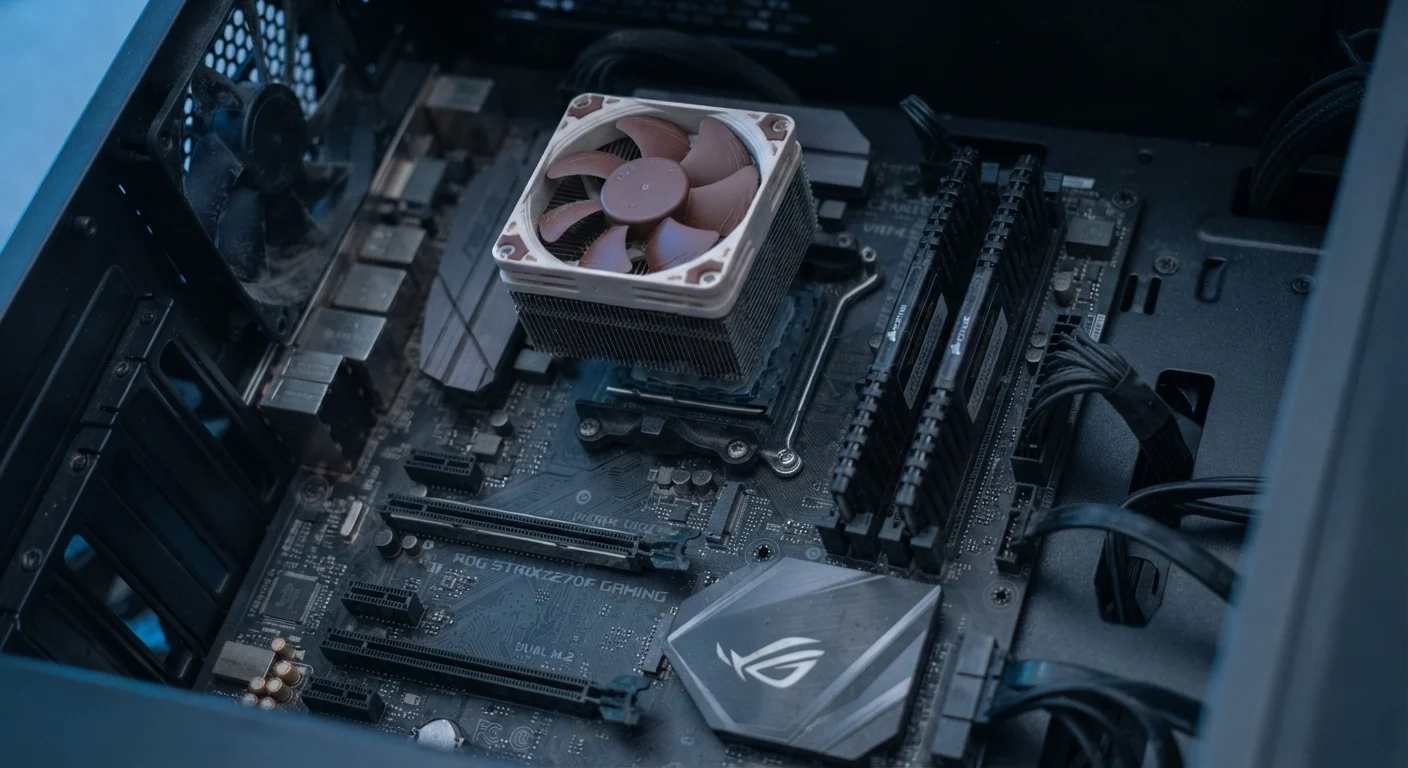
Inside every computer, the CPU (central processing unit) generates significant heat during operation. To manage that heat, a cooling system — typically a fan and metal heatsink — draws heat away from the chip. Thermal paste between the chip and heatsink conducts heat efficiently when it's fresh.
Over years of use, that paste dries out and becomes less effective. Simultaneously, dust accumulates inside the case, clogging fans and blocking airflow. The result: the CPU runs hotter than it should.
Modern processors have a built-in safety mechanism called thermal throttling. When temperatures climb past a threshold, the chip automatically reduces its operating speed to generate less heat and avoid permanent damage. From the user's perspective, this looks exactly like a slow computer — because it is one. The processor is intentionally running below its rated capability to stay within safe temperature limits.
Regular maintenance habits — including cleaning dust from vents and fans — directly address this cause of slowdown.
Laptops Are More Vulnerable to Heat Issues
Laptops pack components into tightly enclosed spaces with limited airflow, making them more susceptible to thermal throttling than desktop machines. Consistently using a laptop on soft surfaces like beds or cushions — which block bottom vents — accelerates heat buildup. Hard, flat surfaces allow better airflow and keep temperatures lower during extended use.
Separating Fixable Problems from Real Hardware Limits
Not every slowdown means a computer has reached the end of its useful life. Many of the causes described above are addressable without replacing hardware. Auditing and trimming startup programs, clearing unnecessary files to free storage space, and ensuring the cooling system is clean and functional can meaningfully restore performance on a machine that feels sluggish.
Hardware limitations are a different matter. A processor that lacks the instruction sets required by modern software, or a machine with a maximum RAM capacity that falls short of what current operating systems expect, faces a ceiling that maintenance can't raise. At that point, the mismatch between aging hardware and evolving software demands becomes the binding constraint.
If you're evaluating whether your current machine still fits your needs — or thinking ahead — matching your computer type to how you actually work is a practical place to start. And if you've noticed similar sluggishness on a mobile device, the causes share some patterns — why phones slow down over time follows much of the same logic.
Understanding what's driving the slowdown is the first step toward deciding whether maintenance, an upgrade, or a replacement makes the most sense for your situation.