
Ports, Connectors, and Cables: A No-Jargon Reference for Every Socket on Your Computer

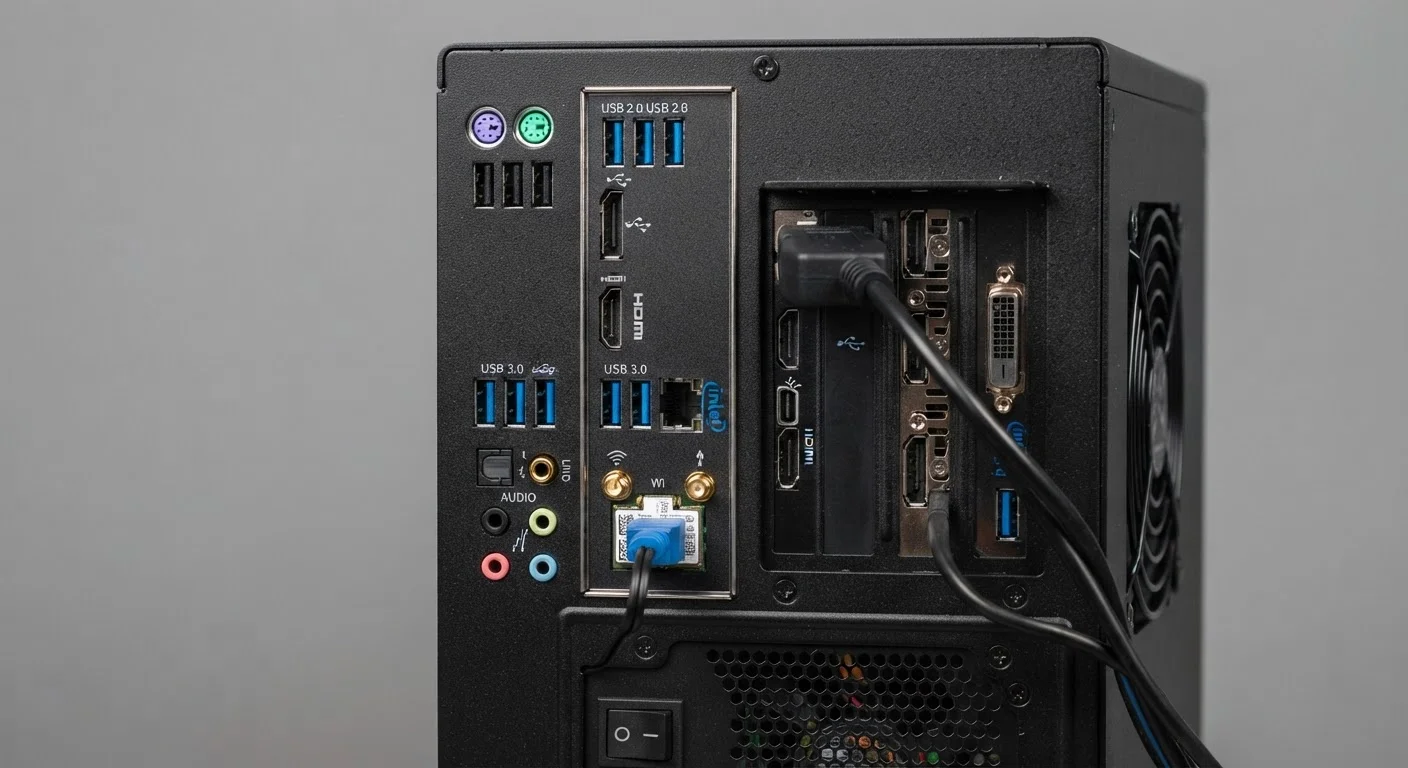
| Most common port type | USB-A (rectangular) |
| Modern universal connector shape | USB-C (oval, reversible) |
| Fastest consumer USB standard | USB4 — up to 40 Gbps |
| Video + audio in one cable | HDMI or DisplayPort |
| Thunderbolt physical shape | Identical to USB-C |
| Wired internet port type | Ethernet (RJ-45) |
Why Port Literacy Actually Matters
You've probably stared at the back of a computer or the edge of a laptop and wondered which slot does what — and whether the cable you're holding will even fit. Port confusion is one of the most common friction points for everyday computer users, and it's completely understandable. The industry has cycled through dozens of connector standards over the decades, and many of them coexist on the same machine.
Understanding your ports isn't about memorizing specs for their own sake. It's practical knowledge: knowing why a video cable won't plug into an audio jack, or why your USB drive transfers files slowly on one port but quickly on another. This reference guide covers every major port you're likely to encounter, what it does, and when you'd reach for it. For a broader look at how your computer choice shapes which ports you'll have access to, see our guide on matching a desktop or laptop to your workflow.
| Most common port type | USB-A (rectangular) |
| Modern universal connector shape | USB-C (oval, reversible) |
| Fastest consumer USB standard | USB4 — up to 40 Gbps |
| Video + audio in one cable | HDMI or DisplayPort |
| Thunderbolt physical shape | Identical to USB-C |
| Wired internet port type | Ethernet (RJ-45) |
USB: The Universal Standard (With Many Variations)
USB — USB — is the most common connector family on personal computers. The problem is that "USB" covers several distinct physical shapes and speed tiers, and they don't always interoperate without an adapter.
- USB-A is the classic rectangular plug most people picture. It's on flash drives, phone chargers, keyboards, and mice. USB-A ports appear on virtually every desktop and most laptops, though newer ultra-thin laptops are phasing them out.
- USB-B is the square-ish connector found on older printers and some audio interfaces. It's rarely seen on new consumer hardware but still common in offices.
- Micro-USB was the dominant smartphone and tablet charging standard for years before USB-C replaced it. Many accessories — external battery packs, e-readers, older cameras — still use it.
- USB-C is the small, oval, reversible connector that's become the modern standard. USB-C is a shape, not a speed rating — a USB-C port might support USB 2.0 speeds or USB 3.2 speeds depending on the device. Always check the spec, not just the shape.
Speed tiers add another layer. USB 2.0 tops out around 480 Mbps. USB 3.0 (also labeled USB 3.1 Gen 1 or USB 3.2 Gen 1) reaches 5 Gbps. USB 3.2 Gen 2 hits 10 Gbps. USB4 can reach 40 Gbps but requires compatible hardware on both ends.
USB
Universal Serial Bus — an industry-standard connection protocol for linking peripherals to computers. USB defines both physical connector shapes and data transfer speeds, with multiple generations in active use.
Thunderbolt
A high-speed connection standard developed by Intel that uses the USB-C physical connector. Thunderbolt 4 supports data transfer up to 40 Gbps, video output, and power delivery simultaneously over a single cable.
DisplayPort
A digital video and audio interface standard commonly used between computers and monitors. It generally supports higher refresh rates than HDMI at equivalent resolutions and is widely used for PC gaming setups.
HDMI
High-Definition Multimedia Interface — a standard for transmitting both high-definition video and audio over a single cable. HDMI is found on TVs, monitors, projectors, and most consumer electronics.
Gbps
Gigabits per second — a unit measuring data transfer speed. Higher Gbps ratings mean faster file transfers; a USB 3.2 Gen 2 port at 10 Gbps moves data roughly twenty times faster than a USB 2.0 port.
Bandwidth
The maximum rate at which data can be transmitted through a connection. In video ports, bandwidth determines what resolutions and refresh rates a connection can support without degrading image quality.
Video Ports: HDMI, DisplayPort, and Thunderbolt
Video output is where connector choices have the most visible real-world impact — resolution, refresh rate, and whether your external monitor works at all depend on matching the right port to the right cable.
HDMI (HDMI) is found on virtually every TV, monitor, and many laptops. It carries both video and audio over a single cable. HDMI versions matter more than most people realize — an older HDMI 1.4 port can't push 4K at 60 frames per second, while HDMI 2.1 can handle 8K and high-refresh gaming. For a detailed breakdown of version differences, our HDMI versions reference guide covers every spec worth knowing.
DisplayPort is common on desktop monitors and graphics cards. It generally supports higher refresh rates than HDMI at the same resolution tier and is the preferred choice for high-framerate PC gaming setups. Mini DisplayPort appears on older laptops and some professional monitors.
Thunderbolt ports (currently at version 4 and 5 on newer hardware) physically resemble USB-C but carry far more capability. A single Thunderbolt 4 port can simultaneously handle video output to two 4K monitors, high-speed data transfer up to 40 Gbps, and device charging. Thunderbolt ports are identifiable by a small lightning bolt icon. Not every USB-C port is Thunderbolt — but every Thunderbolt port uses the USB-C physical connector.
40 Gbps
Thunderbolt 4 maximum data transfer speed
Thunderbolt 4, standardized by Intel, supports up to 40 Gbps — enough to transfer a full Blu-ray movie in under a second under ideal conditions.
480 Mbps
USB 2.0 maximum transfer speed
USB 2.0 remains on millions of devices and ports but is roughly 83 times slower than Thunderbolt 4 — a meaningful difference for large file transfers.
Audio, Networking, and Legacy Ports
Beyond USB and video, computers carry a supporting cast of connectors worth knowing.
3.5mm audio jack: The familiar headphone-sized jack carries analog audio — headphones, microphones, or a headset combining both. Many desktops include separate color-coded jacks for input and output. Some thin laptops and tablets have eliminated this port entirely in favor of USB-C or Bluetooth audio.
Ethernet (RJ-45): The wider version of an old phone jack, Ethernet ports connect directly to a router or network switch via cable for wired internet access. Wired connections are generally more stable and faster than Wi-Fi, which is why many desktop users and home office setups prefer them. Thin laptops often omit Ethernet, requiring a USB-C adapter.
SD card slots: Commonly found on laptops aimed at photographers and content creators, these accept the memory cards used in cameras. Micro-SD cards require either a full-size adapter or a dedicated micro-SD slot.
VGA and DVI: These are legacy video connectors you'll primarily encounter on older monitors and projectors. VGA carries only analog video; DVI carries digital or analog video but no audio. Both have largely been replaced by HDMI and DisplayPort on new hardware.
Kensington Lock slot: Not a data port at all — this small rectangular slot accepts a physical security cable that locks the laptop to a desk. Common on business laptops.
For a plain-language guide to other technical labels and certifications you might see on computer hardware, the product certifications reference guide is a useful companion. If you're also thinking about mobile device connectors, our mobile glossary explains smartphone and tablet terminology in the same plain-language format.
HDMI Versions Reference Guide
A detailed breakdown of HDMI 1.4, 2.0, and 2.1 — covering bandwidth limits, supported resolutions, and which version you need for different display setups.
USB Implementers Forum (USB-IF) Official Site
The governing body for USB standards publishes official specification summaries and certification lists, useful for verifying what a given USB product actually supports.